

December 2011 — Volume 15, Number 3
** On the Internet **
A Route to Communication: Google Maps
M.E. Sokolik
University of California, Berkeley, USA
sokolik berkeley.edu
Introduction
Using maps in education is nothing new. Students have used maps in classrooms to learn about geography, the weather, or any number of other “traditional” topics associated with maps. With the advent of interactive web applications, online maps are used increasingly as tools for instruction in an even wider area of subjects (cf. Byrne, 2010; Warrensburg Schools, n.d.). In the English language learning class, interactive maps, specifically Google Maps, can provide a number of ways in which students can interact–with each other, and with text and images–in ways that encourage communication and collaboration.
Two ways of using maps in language classrooms are described here. These methods should be adaptable to a number of different teaching environments, and to different levels of students.
Project 1. Exploring Campus
Each summer, our university hosts a six-week English language program for visiting international students. A goal in one class I teach (an integrated skills, advanced level English course) is to encourage students to learn about our campus and to get to know each other quickly, given the short time we will all have together. I created this project in hopes of achieving both.
First, a note: although the Berkeley campus is considered an urban campus, it is in fact, set in a beautiful, large, natural area. There are hundreds of trees, open grassy spaces, and a creek that runs through it. I think that it’s important for students to take advantage of this environment while they visit campus.
To this end, for this task, students are put into pairs or groups of three. Each group needs access to one camera (almost all students had camera phones, so this wasn’t an issue). They were given 20 minutes to take a short walk on campus, and along their route, identify a tree that interested them. There were three tasks to do during this activity. Students needed to:
– take a photograph of the tree
– ask a passerby to take a photo of them next to the tree they chose
– write 2-3 paragraphs about the tree, then upload the photos and information to a map showing the location of the tree
(Detailed instructions for uploading photos and editing the maps is found in Appendix A).
When students edited the map, they used a tree icon (see more information below on icons) to note the location of the one they chose. Figure 1 shows a map of the trees the students selected.
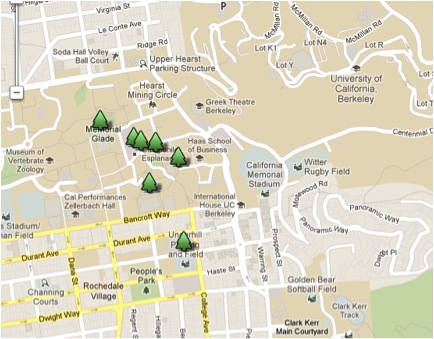
Figure 1. Locations of Trees Selected by Student Groups
Clicking on any of the trees brings up the text and photos that the students added to the map. Figure 2 is an excerpt of the list of text links associated with the trees. Figure 3 shows what appears when you click on a tree’s link.
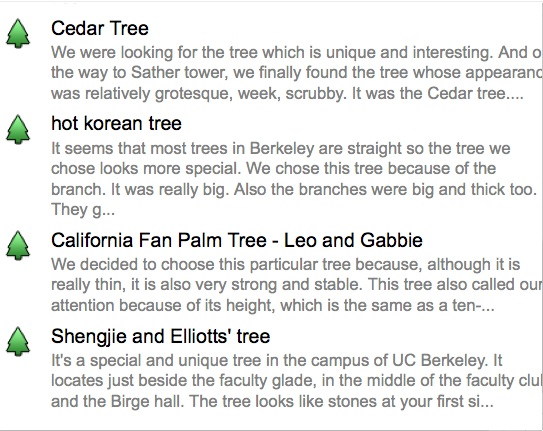
Figure 2. Text Links to Trees
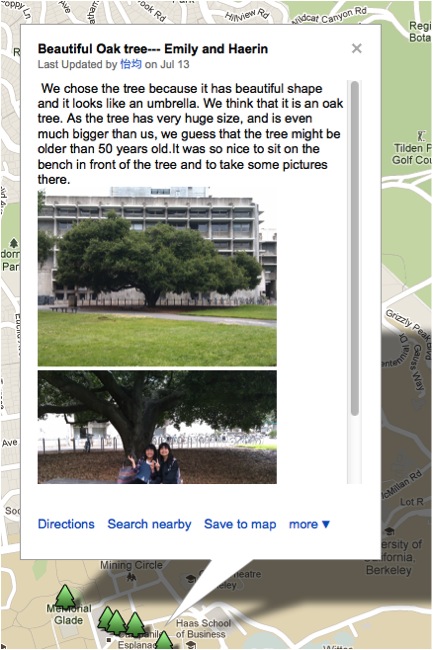
Figure 3. Annotated Tree Entries with Photos
This activity required a number of skills, the most important being collaboration with partners, question-asking of strangers in public places, discussion about their choices and how to write about them, and finally writing.
How to Create a Map
If you have never created a Google Map before, it is important to work through the steps before assigning it to students. You will need to login into a Google account to be able to create a map. If you donít have an account you can create one here: https://www.google.com/accounts/NewAccount. Once you have logged in, go to http://maps.google.com.
The first step is to click on My Places, as shown in Figure 4:
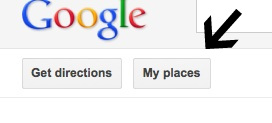 Figure 4. Setting Up a Map, Step 1
This will give you a number of options, but to start a new map, click ìcreate mapî as shown in Figure 5. (To add to or edit a previously created map, choose “My Places”.)
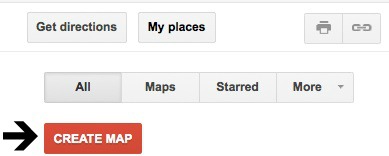 Figure 5. Setting Up a Map, Step 2
This will bring up a window that requires that you give your map a good title and a description. Figure 6 shows some sample text in this box.
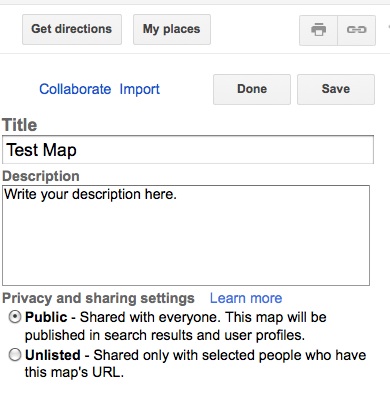
Figure 6. Setting Up a Map, Step 3
Make sure the map is made public if you want others to see it. If you click ‘unlisted,’ you will need to share its URL. See Figure 11 for information on collaboration.
The next step is the important part of the task: selecting locations. To indicate specific locations, click on the marker symbol, shown near the arrow in Figure 7. (This marker is only accessible when you are in ‘Edit’ mode.)
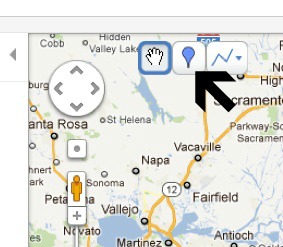
Figure 7. Setting Up a Map, Step 4
You can customize the marker, choosing icons that symbolize locations in specific ways. Clicking on the marker (see the arrow in Figure 8) brings up a menu of icon choices. The students in the Trees of Berkeley project, as you see in the examples, chose tree icons to show where their trees were located. Figure 9 shows some of the icon options.
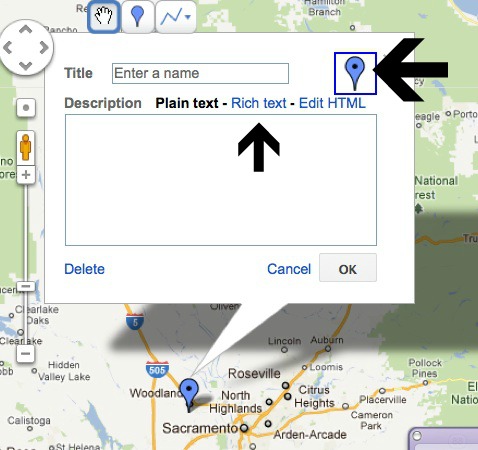
Figure 8. Setting Up a Map, Step 5
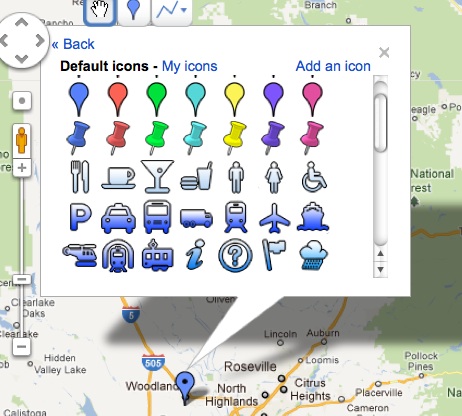
Figure 9. Some Icon Options
Figure 10 shows the editing options when choosing Rich Text (see Figure 8). A title for the location should be given, as well as a text description, and optionally, images. Rich text formatting allows a variety of format types, as well as links to other locations on the Internet.
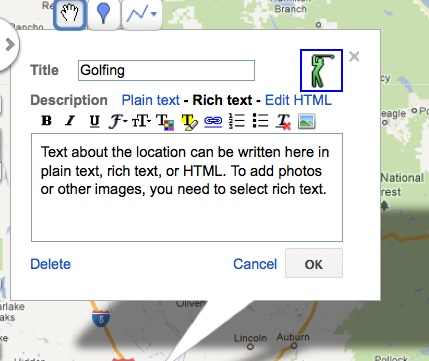
Figure 10. Setting Up a Map, Step 6
Google Maps automatically saves your work at regular intervals. When you have finished, you can click the collaborate link (see Figure 6), and designate any others you want to add to the map. You can control the type of access they have to editing the map as well (red arrow). This is shown in Figure 11.
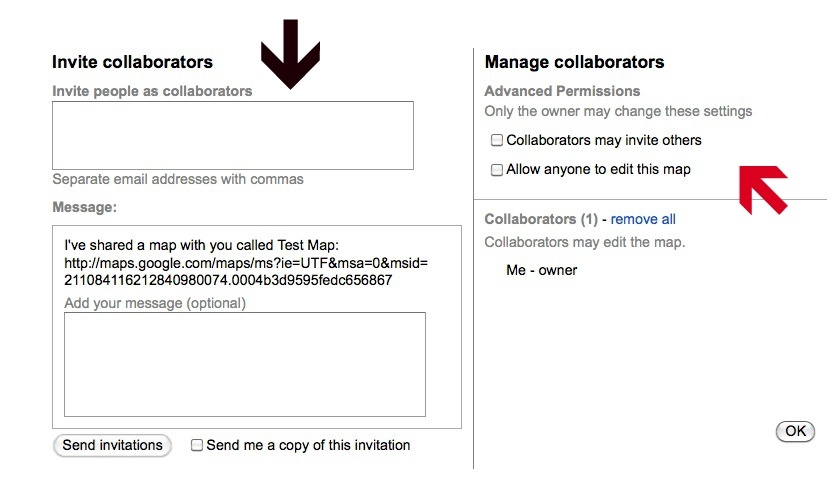
Figure 11. Collaborating on a Map
Project 2: A Literary Map
Maps can be used at different levels. One use is to create maps that coordinate with readings in some way. Woodward (2007), for example, had students contribute to a map that elaborated on the locations in the novel Whirligig (the map is available at: http://maps.google.com/maps/ms?ie=UTF8&hl=en&msa=0&msid=117791037111712559535.000001127080ed4b69333&ll=42.036034,-87.570648&spn=0.550787,1.295013&z=10&om=1). According to Woodward, ” The main character travels to the four corners of the U.S. (on a Greyhound Bus).” The resulting map, as shown, has a large number of different locations along the route of the protagonist’s journey.
For a mainstream course, I asked students to do a literary map, one that was different in two ways from Woodward’s: first, it focused on locations in one city, rather than on many cities, and students created individual, rather than collaborative maps. These first-year students were asked to create maps that coordinated in some way with the reading of a novel, A Confederacy of Dunces, by John Kennedy Toole. This novel is set in New Orleans, Lousiana, a place none of the students had visited. As a way for students to understand the environment of New Orleans, which is discussed extensively in the novel, I asked them to find locations noted in the book on a map, and to look at photographs associated with those locations.
An international student created the following map, using the directions shown above. As shown in Figure 12, the student used different types of icons to indicate the activities that take place in the book at that location.
This map can be accessed at: http://maps.google.com/maps/ms?hl=en&gl=us&ptab=2&ie=UTF8&oe=UTF8&msa=0&msid=211733900663896416594.0004b1268b413ad1aac55
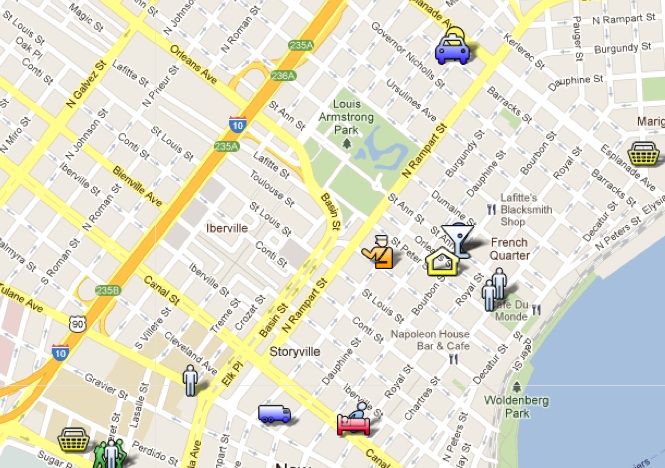
Figure 12. Map Based on A Confederacy of Dunces
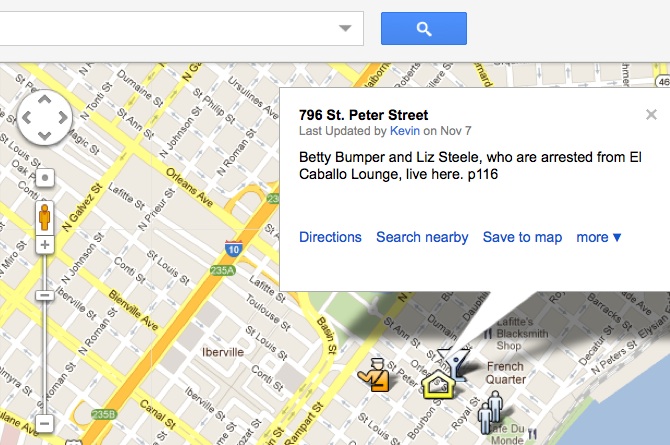
Figure 13. Student Notations from the Book
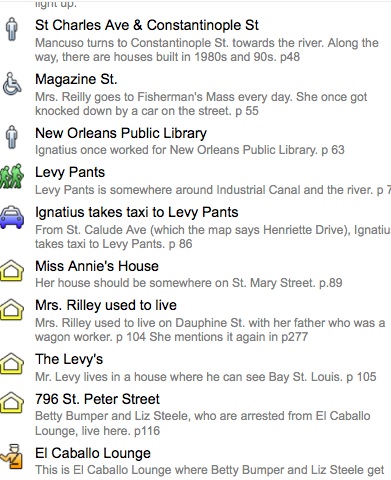
Figure 14. Partial Listing of Locations in the Book
Conclusion
Google Maps can provide a variety of ways for students to work collaboratively in ways that encourage reading, writing, speaking, and listening. They also encourage the use of visual materials with text. Maps can be exciting projects, either for individual students, or pair or groupwork. Google provides additional information on their educators’ website as well (http://www.google.com/educators/geo.html).
Appendix A
Acknowledgments
Thank you to students of ESL 8, Summer 2011 for their great enthusiasm, and their permission to use their work for this article. Thanks also to Kevin Jung of College Writing R1A, Fall 2011 for permission to use his work here as well.
This work was presented as part of a keynote address to the 2011 Colorado TESOL Convention.
References
Byrne, R. (2010). Using maps in an elementary school math lesson. Free Technology for Teachers, Feb. 27, 2010. Available: http://www.freetech4teachers.com/2010/02/using-maps-in-elementary-school-math.html.
Toole, J.K. (1987). A confederacy of dunces. New York, NY: Grove Weidenfield.
Warrensburg Schools. (n.d.) Using Google Maps in education. Available:http://www.warrensburgr6.org/education/components/scrapbook/default.php?sectiondetailid=382.
Woodward, T. (2007). Whirligig on MyMaps. Bionic Teaching, May 9, 2007. http://bionicteaching.com/?p=235.