

December 2010 – Volume 14, Number 3
Using Google Docs to Facilitate Collaborative Writing in an English Language Classroom Practice
| Title | Google Docs |
| Developer | Google, Inc. |
| Homepage | https://docs.google.com/ |
| Type of product | A Google product for creating and sharing online documents |
| Minimum hardware requirements | A personal computer (PC or Mac) with Internet connection and one of these browsers: Internet Explorer 7 or above; Mozilla Firefox 2 or above; Google Chrome 1 or above; Safari 3 or above |
| Supplementary requirement | A Gmail account |
| Online help | Google Docs HelpAvailable at: http://docs.google.com/support/ |
| Price | Free |
Introduction
With the development and advancement of computer networks, online collaborative learning becomes possible even if students cannot meet in a classroom (Macdonald, 2006). In a writing classroom, collaborative writing can also be encouraged with the use of the World Wide Web. Haring-Smith (1994, p. 360) defines collaborative writing as involving more than one person who contributes to the creation of a text so that “sharing responsibility” becomes essential.
Computer networks make collaborative writing easier (Haring-Smith, 1994). They allow students to co-author an article by exchanging drafts electronically. A number of emerging Web 2.0 technologies can facilitate collaborative writing and editing among students. These well-known web technologies include blogs and wikis. While the former allow writing to be shared more easily (Bloch, 2008), the latter allow anyone to edit, modify, or delete content (Lamy & Hampel, 2007). The purpose of this review is to introduce another Web 2.0 application, Google Docs, which includes the functions of blogs and wikis. Sharp (2009) writes that collaborative editing tools allow a group of individuals to edit a document simultaneously while they can view the changes made by others in real time. It is the collaborative editing tool that makes Google Docs a powerful program that can facilitate collaborative writing in the language classroom. An overview of Google Docs and its use is presented in the following sections.
An Overview of Google Docs
Google Docs is “a free, web-based word processor, spreadsheet, presentation, form, and data storage service offered by Google” (Wikipedia, 2010a). It allows users to create, edit and store their documents online (Thompson, 2008). Google Docs includes four major options: Google Documents, Google Spreadsheets, Google Presentations, and Google Drawing, which all share similar functions. This review focuses on Google Documents and how this application can facilitate students’ collaborative writing in the English language classroom.
The Use of Google Docs
Creating and editing a Google document
To start using Google Documents, users need to sign in to their Gmail account at mail.google.com (they simply create an account if they do not have one). Upon login, their mailbox will open. They should click the “Documents” link in the top left corner to get from Google Mail to Google Documents. To create a new document, they can click the “Create new” in the drop-down menu in the Docs List on the left-hand side and select “Document,” or use one of the templates available by clicking “From template” (see Figure 1). The templates which are more suitable for use in a language classroom are available in the category “Students & Teachers.”
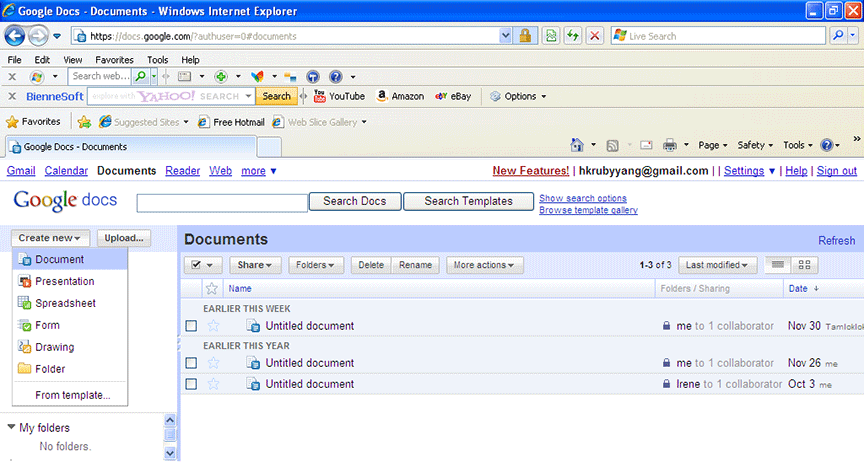
Figure 1. Create a new document
Inside Google docs, the default name of a document (“Untitled document”) can be changed by entering a new document name. Users can upload their documents from applications such as Microsoft Word to Google Docs at any time by choosing “Upload” under the File drop-down menu. Then, they should select file(s) and the destination, and then click “Start upload” (see Figure 2).
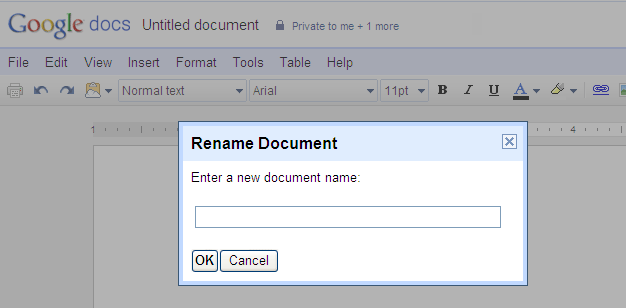 Figure 2. Upload a file
Similar to other word processing programs such as MS Word, Google Documents is a full-featured text editor. The format of the text, including the font, font size, font style (bold, italic, and underline) or text color, can be changed by using the menus in the toolbar. Also, images or URLs can be added by selecting “Image” or “Link” from the Insert menu.
Inserting comments, sharing, and collaborating
The feature that makes Google Docs different from other word processing programs is its function that allows sharing, collaborating, and publishing. To share a created document with others, users should click the “Share” drop-down menu on the right-hand side and select “Sharing settings.” In the Sharing settings dialog box there is an “Add people” box where users can type the email addresses of the people with whom they want to share documents, or, if the person is in the user’s email contact list, they can choose their names using the “Choose from contacts” option (see Figure 3). On the right-hand side of the list of names, users specify whether those people “Can edit” or “Can view” only.
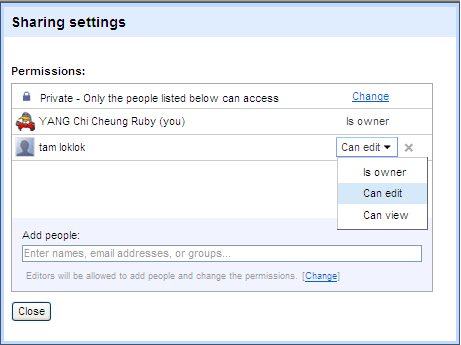 Figure 3. Sharing settings
It is recommended that the “Send email notifications” option be checked; this way the program will send an email to the person letting them know that someone has shared a document with them and provide them with a link to the document. After that, users click “Share.” Alternatively, the created document can be shared as an email attachment by selecting “Email as attachment” under the “Share” drop-down menu (see Figure 4).
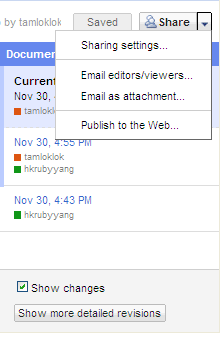 Figure 4. Email as attachment
In producing a piece of written work collaboratively, students may need to exchange ideas and give comment to others. This can be achieved by choosing “Insert” and then clicking “Comment.” The username of the user will be shown in the box on the right-hand side of the document and the user can type the comment inside the box (see Figure 5).
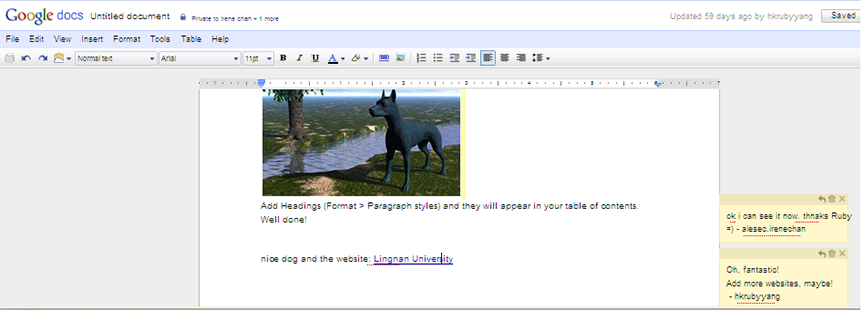 Figure 5. Inserting comment
When the user and his/her collaborators are editing the document, they can keep track of the changes made (see Figure 6) by clicking “See revision history” under the File drop-down menu.
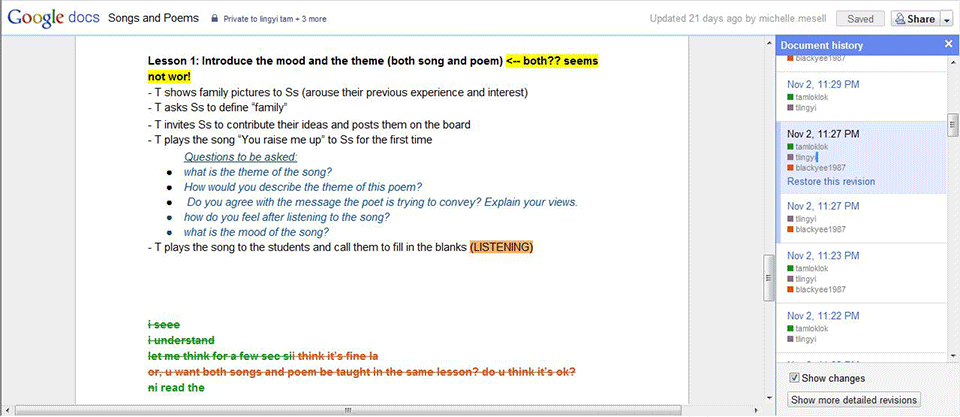 Figure 6. Document revision history
One interesting feature of Google Docs is that if the collaborators are online at the same time, they can edit the document simultaneously and can view the changes made by others to that document in real time (see Figure 7).
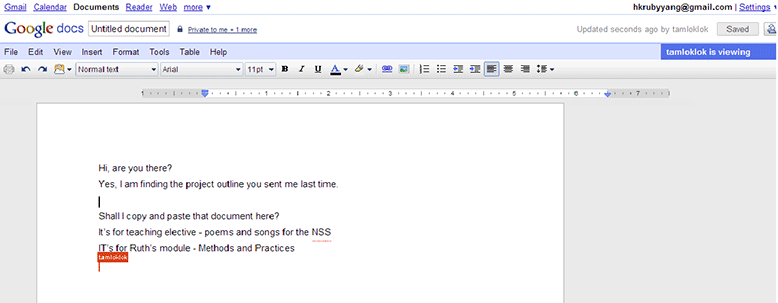 Figure 7. Real time collaborative writing
Publishing
Once the document has been created, it can be published by selecting the “Publish to the Web” option under the “Share” drop-down menu. Inside the “Publish to the Web” dialog box, users should click “Start publishing” and then confirm by clicking OK in the “Message from webpage” dialog box to make the document available as a webpage. The link to the published document will then be shown in the “Document link” box (see Figure 8) and the document can be accessed and seen by anyone anywhere in the world.
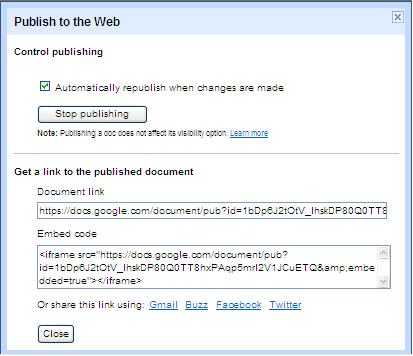 Figure 8. Publish to the web
The Use of Google Docs in an English Language Classroom
As suggested at the beginning of this review, Google Docs can facilitate collaborative writing. To achieve this, students can first form small groups and receive a writing assignment. They can then co-author a piece of text using Google Docs, giving comments to other collaborators and editing other collaborators’ drafts in real time. It is this kind of synchronous communication among collaborators that makes Google Docs a more powerful tool for collaborative writing than wikis or emails which involve only asynchronous communication. With the features of Google Docs, collaborative writing is no longer bound by time and space. If the students cannot finish the writing task within class time, they can save their work, store it online, and then continue writing anytime and anywhere.
Conclusion
This paper reviews the use of Google Docs and how it can be used to facilitate collaborative writing in a second language classroom. Google Docs is user-friendly, and students can work collaboratively on writing tasks without being restricted by time and space. It also has a benefit over email by allowing synchronous communication. One major shortcoming of Google Docs is that one cannot edit others’ work if he/she is not a Gmail user. However, with the popularity of Gmail with 193.3 million monthly users (Wikipedia, 2010b), using Google Docs is not a big problem for most students. Godwin-Jones (2008) suggests that Google Docs is probably the most widely used online text editing tool. With the use of Google Docs, it is expected that students not only can have stronger motivation to write collaboratively, but also that their higher-order thinking skills, such as evaluating and commenting on peers’ written work, can be enhanced.
References
Bloch, J. (2008). Technologies in the second language composition classroom. Ann Arbor, MI: University of Michigan Press.
Godwin-Jones, R. (2008). Emerging technologies web-writing 2.0: Enabling, documenting, and assessing writing online. Language Learning & Technology, 12(2), 7-13.
Google (2010). Google Documents – Google Docs Help. Retrieved September 6, 2010, from http://docs.google.com/support/bin/topic.py?topic=15114.
Haring-Smith, T. (1994). Writing together: Collaborative learning in the writing classroom. New York, NY: HarperCollins College Publishers.
Lamy, M. & Hampel, R. (2007). Online communication in language learning and teaching. Basingstoke, UK: Palgrave Macmillan.
MacDonald, J. (2006). Blended learning and online tutoring: A good practice guide. Aldershot, UK: Gower.
Sharp, V. (2009). Computer education for teachers: Integrating technology into classroom teaching (6th ed). Hoboken, N.J.: John Wiley.
Thompson, J. (2008). Don’t be afraid to explore Web 2.0. Education Digest, 74(4), 19-22.
Wikipedia (2010a). Google Docs. Retrieved November 4, 2010, from http://en.wikipedia.org/wiki/Google_Docs.
Wikipedia (2010b). Gmail. Retrieved November 27, 2010, from http://en.wikipedia.org/wiki/Gmail.
Acknowledgements
I would like to express my deepest gratitude to the Media Review Editor of TESL-EJ for giving me valuable comments on the earlier drafts of this paper. I would also like to take this opportunity to thank my student Tam Yi Lok for her kind assistance when I wrote this review.
About the Author
Chi Cheung Ruby Yang is a Teaching Fellow at the Department of English, the Hong Kong Institute of Education. Her major teaching and research area is integrating information technology in English language teaching and learning. She can be contacted at: rccyang@ied.edu.hk.
| © Copyright rests with authors. Please cite TESL-EJ appropriately. |